AI Studio. Make the pictures and videos.
The second section in the sidebar is where media gets made. Media Studio is the generation room: pick an image or video model, add references, set size and quality, and generate up to four results at once. Everything you make lands on the Canvas, where you keep working with it. And Headquarters connects those steps into a pipeline you can run again and again — it opens in beta first, after launch.
Media Studio
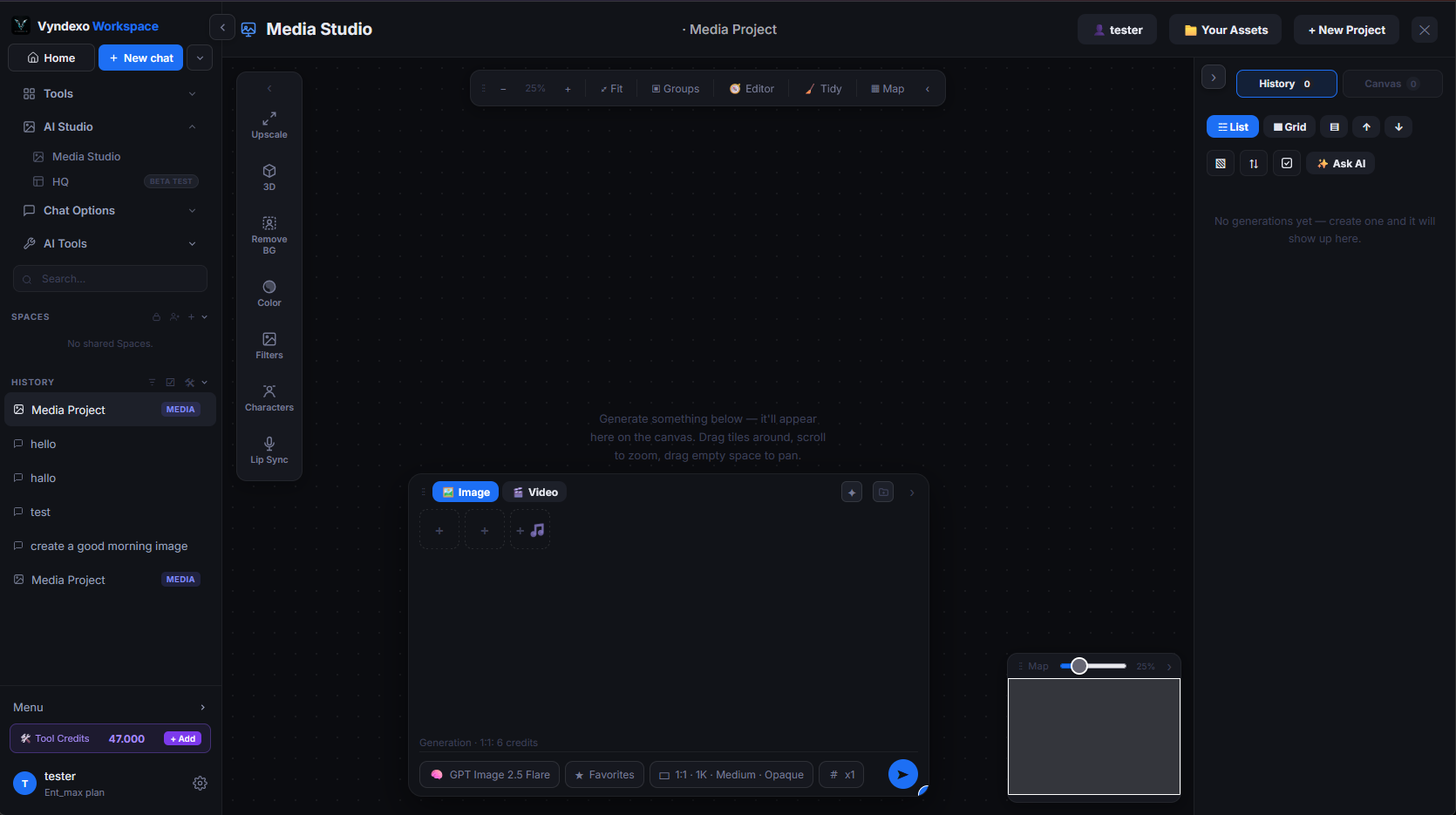
This is the studio with everything open: the media project you can find in your history or in spaces on the left, your assets and generated images on the right, and the generation box in the middle. You choose an image or video model from the same pill you know from the chat, drop in reference images (or a start and end frame for video), set ratio, resolution and quality, and hit generate. By clicking the arrows on the edges of a panel, you can close or minimise it and it will then only show an arrow on the edge of the screen or on the canvas, this way when you need the panel again, you can restore it by clicking on the arrow. You can also move the generation box by clicking the three dots on the upper left corner of it, on the three dots.
What it does
Generates images and videos with 45 image models and 69 video models. One upload control takes images, audio and video; the box grows as you add references and shrinks back when you clear them.
What it's for
- Product shots, social visuals and concept art from a prompt
- Editing an existing image by giving it as a reference
- Short videos from text, from an image, or between a start and an end frame
Good to know
You can submit up to four generation at once for the same model by selecting 4x in the pill near the send button. Every resolution tier has its own price, shown before you generate, charged in Tools credits. A failed generation is never charged.
Canvas
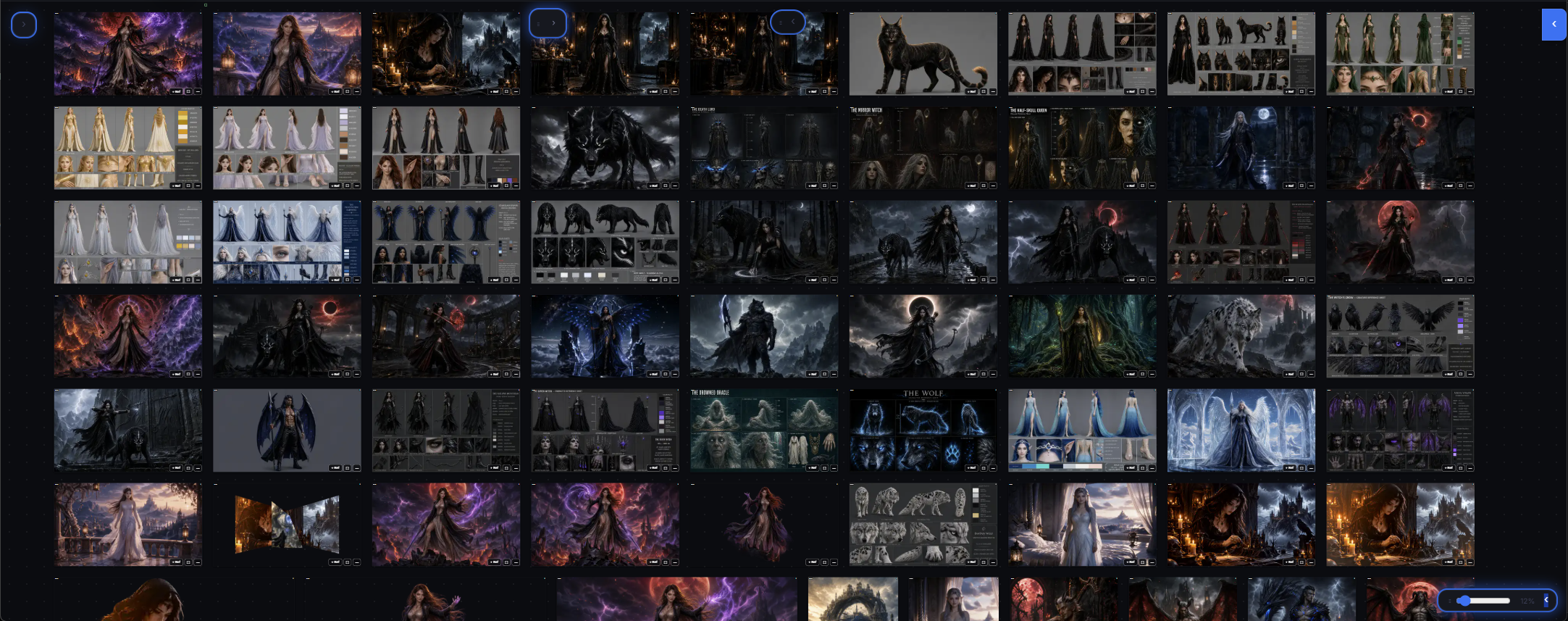
Close the panels and the same room becomes your canvas: every image and video you have made, laid out in front of you. Pick any result and send it straight back into the generation box as a reference, into a chat, or into a media project — nothing has to be downloaded and re-uploaded.
What it does
Keeps all your generated media in one view, grouped by project, with the prompt and model that produced each one.
What it's for
- Comparing variations before you choose one
- Building a series: take a result, use it as reference, generate the next step
- Collecting assets for a media project or a client
Good to know
Assets can be imported from your computer, from the canvas itself, and from the history of other media projects. Drag an image from one slot to another and the two swap places.
Headquarters Beta · after launch
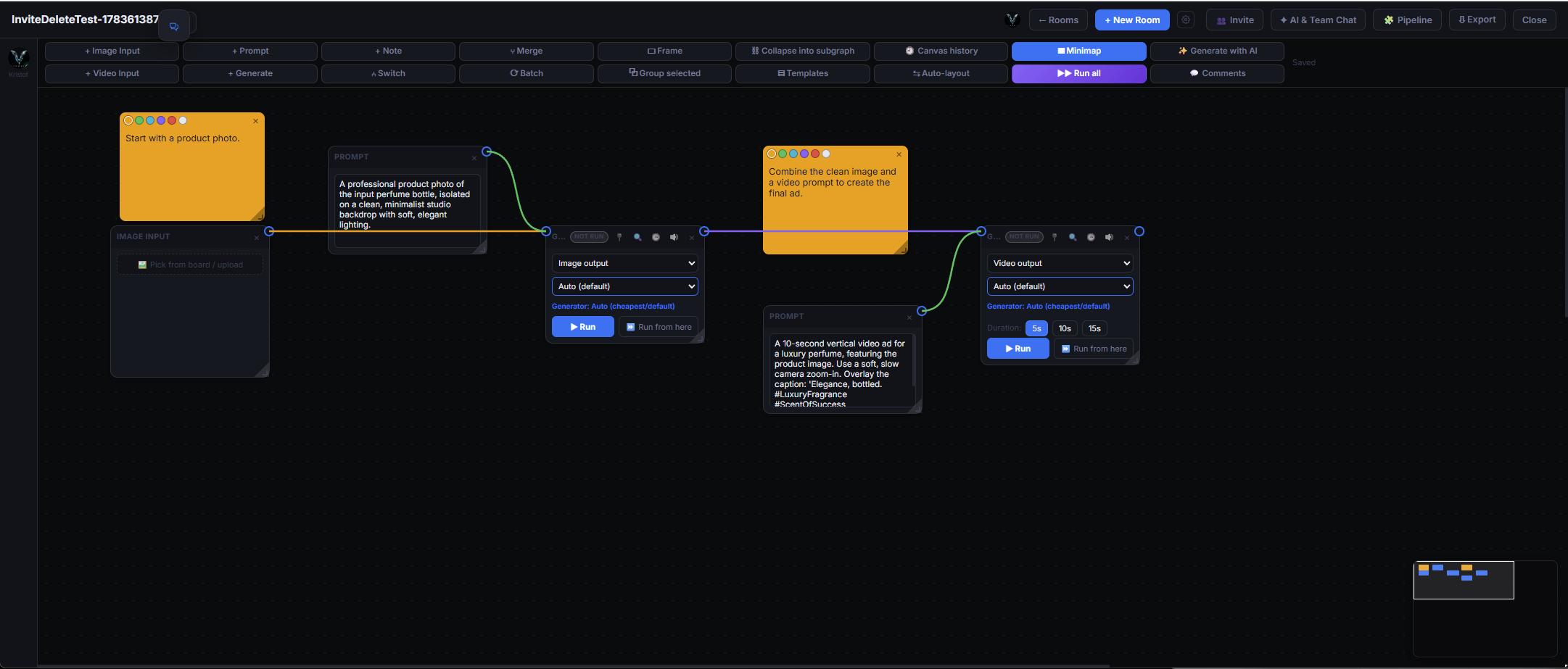
Headquarters is the node-based pipeline. Instead of generating one thing at a time, you lay out the steps as connected boxes — a text step that writes the prompt, an image step that renders it, a video step that animates the result — and run the whole chain in one go. Change one node and run it again.
What it does
Connects text, image and video steps into a graph. Each node uses the model you pick for it; the output of one node becomes the input of the next.
What it's for
- Repeatable workflows: same pipeline, new input, consistent output
- Multi-step pieces — storyboard → frames → animated clips
- Batches that would take dozens of manual generations
Good to know
Each node is charged like the equivalent single generation, in Tools credits. Headquarters is not part of the launch release; it opens as a beta first.