
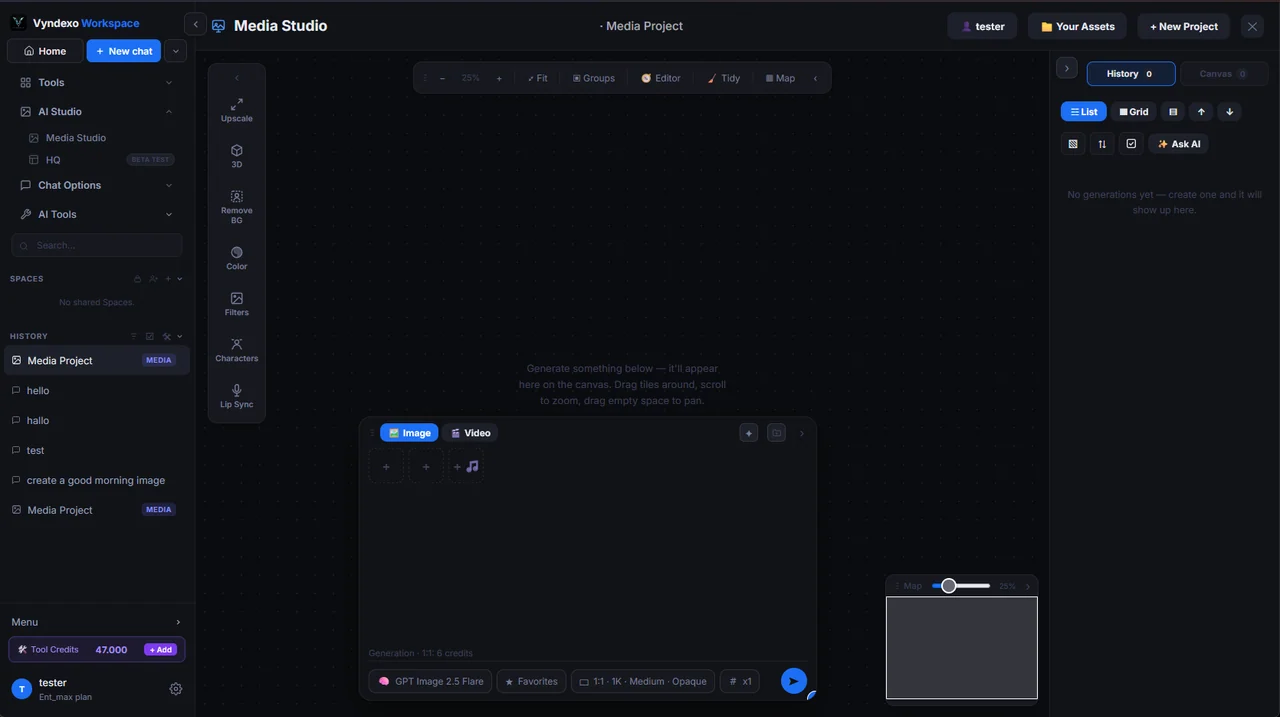
From a brief to an image project
Use the image-generation models offered in Media Studio to explore a visual idea, a character concept, a campaign image or a product scene. Start with the subject, composition, lighting and intended use rather than relying on a model name alone.
When a model supports reference images, add the images you want it to consider and explain their role. A composition reference and a character reference serve different purposes, and no model-independent control can guarantee identical results.
Create your first image
- Open a Media Studio project. Keep a project for the subject or campaign so related outputs stay together.
- Select an image model. Review the available ratio, resolution, quality and reference controls. Only use options supported by that model.
- Write the brief and attach references. Describe what should change and what should remain consistent. Confirm the intended attachments are present before starting.
- Generate and inspect. Review the result at a useful size, compare it with the references and refine the next prompt. Keep successful versions in the project.
Keep versions useful after generation
A single image is often only one step in a creative process. Media Studio retains the saved prompt and model settings with generated outputs, while the project library and Canvas help you browse the work in context.
Image editing and enhancement options depend on the available tools and the selected model. Check the workspace controls for current capabilities, and review the pricing page for how Tools credits apply.
Questions about AI image generator
Can I generate images from reference images?
Yes, where the selected model supports reference input. The supported number and type of references vary by model, and reference fidelity is not guaranteed.
Is an image editor the same as an image generator?
Not always. Some models generate from text, some support reference-guided creation and some provide editing modes. The workspace exposes the supported controls for the selected option.
Can I keep several versions in one project?
Media Studio organizes generated results by project so you can review earlier outputs alongside their saved prompts and settings. Shared Spaces provide collaboration where enabled.
Are all image sizes and quality settings available on every model?
No. Ratio, resolution, quality and other generation options are model-specific. Select the model first and use its available controls.
Bring the work into your workspace.
Check the current model options, review the relevant credits and start with a focused project. Keep the results and the context for the next step.
Open VyndexoExplore all features